Nemeth Braille Code
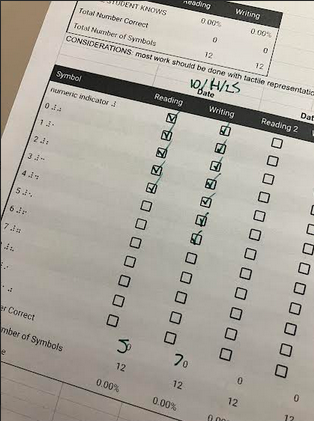
The Nemeth Braille code is a wonderful tool. As students are learning from pre-kindergarten through 8th grade, data collection may be an important part of your process to ensure they are on the right path. One tool you may consider using is a teacher made PK-8th Nemeth Skills Inventory that I created. This inventory of 143 symbols is based on Common Core Standards, Next Generation Science Standards, and braille resources, such as Maryland’s Braille Math Standards and the updated Nemeth Braille Code rules from 2024. Tools like this are useful for understanding and filling in the gaps of what to teach at each grade level. As students demonstrate mastery of these concepts, they are then able to traverse high school and college mathematics.
Making the transition from paper Nemeth to digital Nemeth with a refreshable braille display aids our students in immediate teacher feedback. Dr. Denise Robinson has many videos on her YouTube channel to support math and high-tech technology through the support of screen readers. As students reach higher levels of math, Nemeth will continue to be useful, and the addition of tools like LaTeX will become additional supports.
What is LaTeX
LaTeX (Lah-Tek) is a system for writing plain text and converting it into math expressions. This
tool is useful for digital output of higher-level math like college algebra or calculus. To
build skills in using LaTeX, and to build the skills early, high school students may benefit from
learning the basics of this syntax. The benefit of using LaTeX in Microsoft Word is that all the
characters that one types will be read properly by screen readers, and with some additional
support, the document can be converted into Nemeth or UEB Math on a braille display.
Additionally, LaTeX is supported in Pages, an Apple product similar to Microsoft Word on Mac.
The downside to using Microsoft Word compared to a full LaTeX environment like Overleaf, an
online word processor for LaTeX, is that the user does not have access to the full breadth of
symbols available in a dedicated environment.
Getting started in Word
Keyboard shortcuts will help ensure everything is prepared for when the user starts typing.
Follow these steps:
- Alt = opens the equation editor.
- Alt JETX sets the input mode to LaTeX once inside the equation editor.
- Alt JEC may be helpful to remember to switch between professional mode and linear
mode. Professional mode displays the equations as they are intended to be written, and linear mode displays what is typed. This is helpful for editing work with screen readers. When students are submitting work to teachers, students must select professional mode all to turn all equations to professional mode.
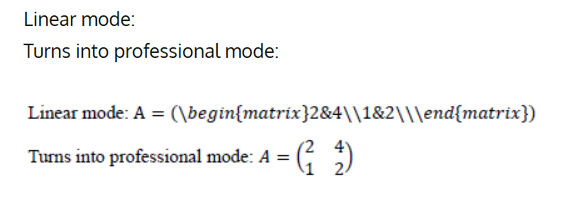
- Outside of the basic four function symbols +, -, *, and / used for addition, subtraction, multiplication, and division, LaTeX uses the backslash \ as a prefix to many symbols and concepts. Here is an example where \div is used to represent the division symbol in linear mode and then professional mode. example: 4/div2=2
Simple Equations
Addition
Outside of the equation editor, the user can type simple problems like 2+3=5. Inside the
equation editor, they are formatted properly.
Subtraction
The equation 3-2=1 can be problematic. In addition to formatting, outside of the equation editor the dash is read as “dash” or “to” using a screen reader; however, in the equation editor, the symbol is read as “minus.”
Multiplication
We can follow the trend of if the user enters 3*2=6 it will be seen as an asterisk, but in the equation editor the user will get access to other symbols \bullet and \times:
4\times3 = 12 yields 4 × 3 = 12
5\bullet4 = 20 yields 5 ∙ 4 = 20
Division
For division, the forward slash / may be represented also with fractions. We have 6/3=2 and
6/3 = 2. We can also use \div to make it clearer that we are dividing:
4\div2 = 2 yields 4 ÷ 2 = 2
Fractions
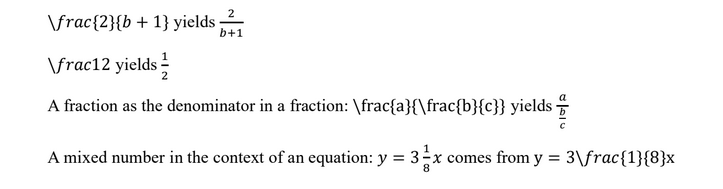
For fractions, we must use some additional conventions: \frac{a}{b} , where a is the numerator and b is the denominator. This will result in a fraction with a numerator and denominator. For fractions with one number in the numerator and denominator, you can shorten this to \fracab.
Variable and Text
Typing a variable is as simple as typing its letter. To type text as your variable, surround the text in quotation marks. Additionally, the command \mathrm exists to turn font into Roman letters, instead of using the quotation marks.

Degrees
For the degree symbol, we have a shortcut, \degree, which can be useful in multiple contexts. There is also \circ with a superscript.
1\degree “C” yields 1°C
37^{\circ}F yields 37°F
With \angle we can write angle measures too: m\angle A= 67\degree yields mA= 67°
Parenthesis
We have two ways to indicate parentheses: open parenthesis ( and close parenthesis ) and \left( and \right). Type the easier convention and know that if you convert back to linear mode that the more complicated \left( and \right) will appear.
y=(2+x)(2-x)turns back into:
y=\left(2+x\right)\left(2-x\right)
y=(2+x)(2-x)
This convention of \left( and \right) is useful for symbols other than parentheses, like brackets and braces.
{a+b}|-3| comes from:
\left{a+b\right}\left|-3\right|
Shapes and Geometry
Due to being in Microsoft Word and not Overleaf or another full LaTeX environment, we are limited with our shapes and cannot manipulate them by adding lines, rays, and segments atop them. Our access to shapes stops at \triangle and modified expressions at \overbar or \overline.

Superscripts and Subscripts
Superscripts are typed with the caret ^ and subscripts are typed with the underscore _. Note that if you are using both a superscript and a subscript that the order does not matter.
x_1^y yields x1y
x_2^{2+y} yields x22+y, like how more complex fractions use curly braces { }.
Signs of comparisons
We have = for equal, < for less than, > for greater than, \neq for not equal, \leq for less than or equal, and \geq for greater than or equal. There are a host more of symbols like \sim for similar, \cong for congruent, and \propto for proportional.

Greek letters
We have \pi, \alpha, \beta, \theta, \Delta, and \sum for summation, amongst others. Note that you can make these capitalized to get their capitalized counterpart, like \delta and \Delta. Common examples are:

Radicals
Square root, cube root, and nth root are options we can create by using \sqrt, where the index, n, and the radical, x, can be represented in braces \sqrt[n]{x}.
![\sqrt4 yields 4
\sqrt[3]{8} yields 38](https://www.pathstoliteracy.org/wp-content/uploads/2024/10/Screenshot-2025-11-03-5.png)
Desmos calculator
The above concepts should be enough to cover much of math in high school, excluding geometry and graphing. For graphing we have the Desmos suite of calculators.
Using the Desmos calculator
This link will open the scientific calculator. There are a couple handy shortcuts, like frac to insert a fraction and sqrt to insert a square root. The resources have a link to all the helpful keyboard shortcuts for Windows and Mac. One helpful tool for braille users is the ability to toggle Nemeth or UEB Math input and the ability to toggle 6-key entry for the keyboard. The other helpful feature is that when braille mode is toggled off, the user can copy calculations and paste them in the format of LaTeX directly into the equation editor.
Using the Desmos graphing calculator
This link will open the graphing calculator. The same shortcuts and more work in the graphing calculator. See the resources for more information. Useful things we can do with our graphing calculator beyond y=mx+b equations are:
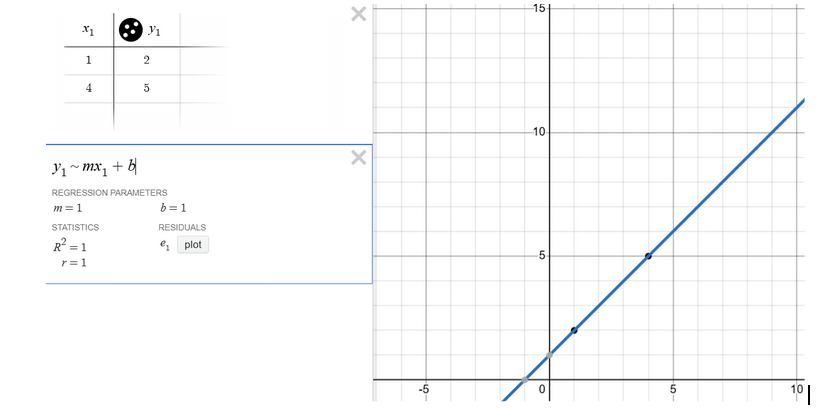
- Tables that plot points with the table command. y1~mx1+b approximates a straight line for graphing, and it works even with scatterplot-type data.
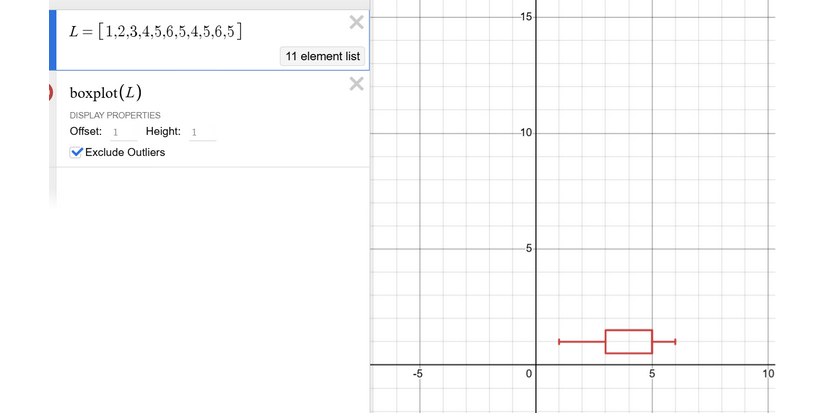
- Make lists of data for histogram and boxplot commands. Lists are surrounded by square brackets.
- Audio-tracing, alt t, is a feature that allows the user to listen to the graphed line or plotted information, such as the height of each column in a histogram.
- Embossing graphs into tactile graphics via sharing, ctrl alt s, and exporting the image. This can then be opened with Firebird or your tactile graphics software of choice.
Resources
- Desmos. (n.d.). Graphing calculator keyboard shortcuts. Desmos. https://www.desmos.com/graphingshortcuts
- Desmos. (n.d.). Scientific calculator keyboard shortcuts. Desmos. https://www.desmos.com/scientificshortcuts
- Freedom Scientific. (n.d.). Accessing math content with JAWS and Fusion. Freedom Scientific. https://www.freedomscientific.com/training/teachers/accessing-math-content-with-jaws-and-fusion/
- Hefferson, J. (2020). LaTeX math for undergrads. Comprehensive TeX Archive Network. https://tug.ctan.org/info/undergradmath/undergradmath.pdf
- Maneki, A. (2024). Guidelines for collegiate faculty to teach mathematics to blind or visually impaired students. Mathematics Association of America. https://maa.org/wp-content/uploads/2024/05/CUPM-Guide_Resources-for-Teaching-Blind-or-Visually-Impaired-Students.pdf
- Marsala, J. (2025). Typing math in Microsoft Word. University of Houston Mathematics. https://online.math.uh.edu/typing-math-in-ms-word/
- Pakin, S. (2005). The comprehensive LaTeX symbol list. Adelphi University. https://home.adelphi.edu/~tfoguel/latexsymbols.pdf
- Robinson, D. (n.d.). Tech vision. Tech Vision. https://yourtechvision.com/